Wedding Website Link on a Save the Date: What to Share
Choose the right guest link for your Nikah or Walima Save the Date, with four original messages, format guidance and a three-person sharing test.
Should your Save the Date include a wedding website link?
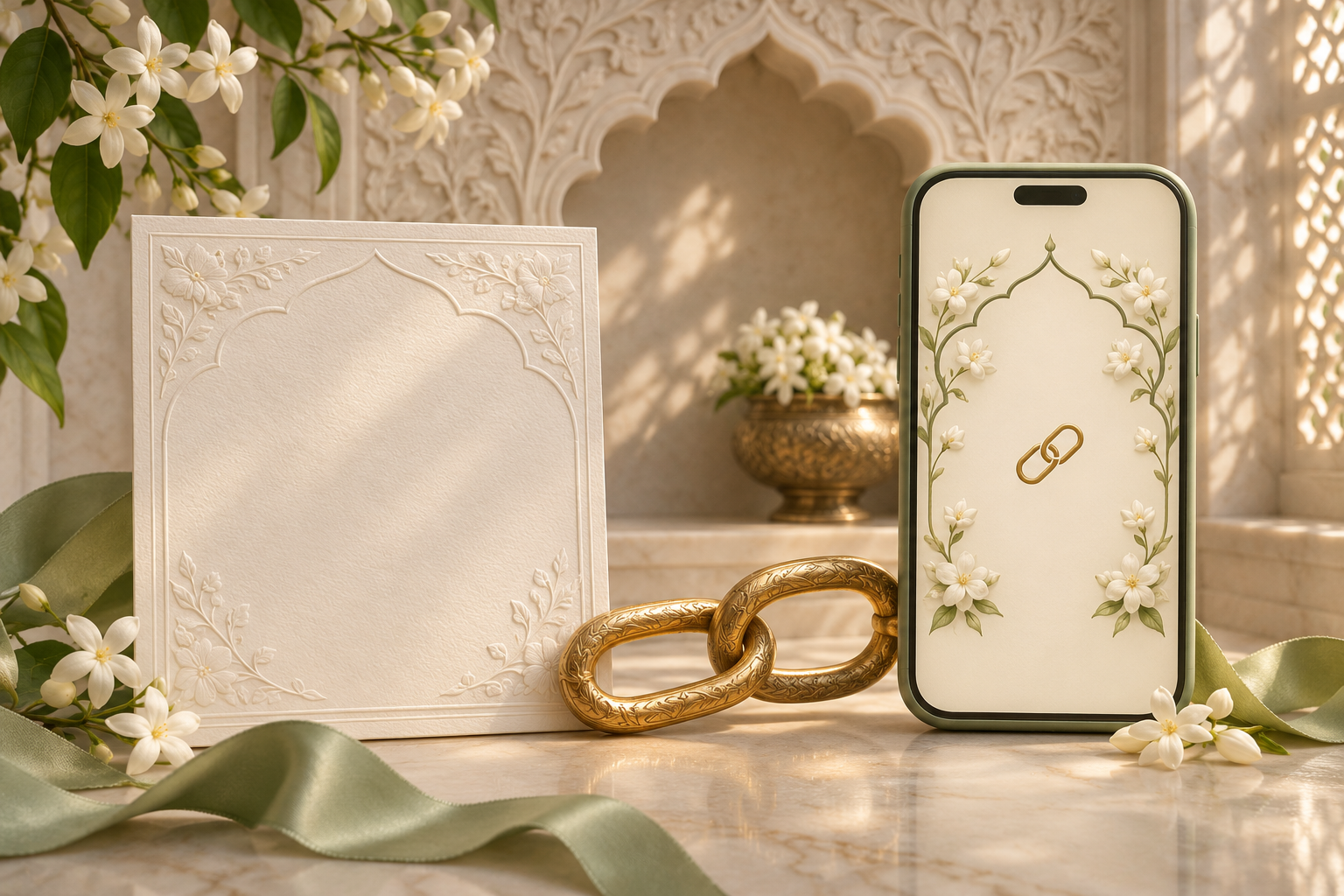
Yes, if the page is ready for your guests and gives them something useful to read. Put a short explanation beside the wedding website link so guests know whether they are opening early travel information, confirmed celebration details or an invitation that needs a reply.
For a digital Save the Date sent through WhatsApp, include the working link in the accompanying message. A URL drawn inside a JPG or MP4 is part of the artwork; it is not a built-in clickable link. For printed announcements, a readable web address and an optional tested QR code can help guests reach the page.
The important decision is what happens after the guest opens it. This guide focuses on choosing the right destination and describing it accurately for a Nikah or Walima announcement.
Choose one useful destination before designing the announcement
Write down the one thing you want the guest to find. Then open the proposed page and check that it delivers that information without requiring a search through unrelated screens.
Early planning information
A page containing a confirmed date, city and approved travel notes can support a Save the Date. Label it as early information. Do not say “all wedding details” when the venue or timings are still being finalised.
If the page has no useful information yet, leave the link out for now. Our guide to sending a Save the Date before the website is ready covers that earlier stage.
Confirmed event information
A guest-ready page with the relevant celebration date and practical details can be linked directly. Check that the announcement and website use the same event name. A Walima announcement should not land on an unexplained Nikah-only page.
A reply form
Link to a reply form only when you actually want that response now. Explain what guests are answering and any deadline. If you are simply announcing the date, avoid an automatic “RSVP now” caption copied from a full invitation template.
A message saying someone hopes to attend is not necessarily their final attendance confirmation. Decide how early indications will be handled before collecting them.
Match the link format to how guests receive it
WhatsApp image or short video
Keep the names, date and city clear in the artwork. Add a short accompanying message containing the actual guest-facing link. Test the message on a receiving phone, rather than assuming that an address visible in the design will be tappable.
If the artwork includes a web address for reference, keep it readable. Do not squeeze a long URL into the smallest line just to fit it beneath decorative wording. The accompanying message can carry the working link while the design retains its hierarchy.
Noor Save the Dates offer personalised portrait announcements, static or short-motion options and a preview before delivery. Confirm your chosen output and link placement in that preview; a delivered image or video and a live website are different parts of the sharing plan.
Use a clear text link with a descriptive label, such as “View our Walima information.” Keep the core date and city in the email as well, so the announcement still makes sense before anyone opens the page. Check the sent test email, including the destination behind the link, not only the draft.
Printed card
A QR code can be useful when someone has the physical card in front of them. Keep a readable web address alongside it where practical, and say what the code opens. Proof the actual printed size before approving a run. A digital preview that scans on a large monitor does not prove that a much smaller print will work.
For a deeper print workflow, see our wedding website QR code guide. Do not use a QR code as the only route in a phone-first message: guests are already looking at that screen, so a normal link is the simpler starting point.
Four original link messages you can adapt
These are editable examples, not real client arrangements. Replace every bracketed item and keep only claims that match your page.
1. Early Nikah announcement
“Please keep [date] free for our Nikah in [city]. We have put the confirmed date and city here: [guest link]. Venue and timings will follow with the invitation.”
Use this when those are genuinely the details available. Do not include provisional venue information on the linked page as if it were settled.
2. Walima with travel notes
“We would love to celebrate our Walima with you on [date] in [city]. For the travel information we have confirmed so far, please open [guest link]. The formal invitation will follow.”
This works when the page contains useful, checked travel guidance. It should not imply that accommodation, transport or costs are being provided unless that has been arranged and explained.
3. Information available, no reply needed yet
“Our celebration date is [date]. You can find the current details at [guest link]. There is no need to reply yet; we will send the invitation and response details separately.”
Use this only if your linked page also makes that stage clear. A prominent response deadline on the website would contradict the message.
4. Two celebrations for the same recipients
“Please save [Nikah date] for our Nikah and [Walima date] for our Walima. Both celebrations are listed separately at [guest link], with the information confirmed so far. We look forward to sharing the formal invitation.”
Send this only to people invited to both events. If the guest lists differ, prepare event-specific messages and check the destination for each group.
Check who should see the destination
A beautifully designed announcement can still cause confusion if its link opens details for an event the recipient is not invited to. Before sharing, pair each recipient group with its approved artwork, message and destination.
For example, keep a private working list with three columns: recipient group, announcement version and guest page. “Walima guests” should map to the Walima version. Do not assume the website automatically hides other events or recognises the recipient. Confirm any such behaviour in the actual setup.
Never put an editor link, private draft-management address or admin sign-in link into the announcement. Open the guest link outside your signed-in editing session and check what an ordinary recipient can see. Our invitation privacy guide explains how to think about links that may be forwarded through families.
Run a three-person sharing test
Choose one person who knows the wedding plans, one who has not helped with the design and one who uses a different phone from yours. Send the exact proposed announcement and message privately to these reviewers, with their agreement.
Ask each person to answer three questions:
- Which celebration and date do you think this announcement is for?
- Where did the link take you, and what useful information did you find?
- Do you think you need to reply now?
If their answers differ from your intention, correct the wording or destination before sending widely. A working page alone is not enough if its purpose is unclear.
Also check that the website opens without your editor login, that the couple names match the announcement and that any access step is explained. Keep an alternative contact route available for guests who cannot open the page comfortably.
What if the website address changes later?
Ask the person managing the website whether the original guest address will continue to work. Do not assume a redirect has been set up. Open the old link from a previously sent message to test the real path a guest will take.
If the old address no longer works, send the replacement directly with a clear correction: “Please use this updated link for our [event] details: [new guest link]. The earlier link is no longer in use.” Updating artwork in your own folder will not replace files already saved on other phones.
For a date, venue or timing change, send an explicit correction as well. Guests should not have to repeatedly check a website to discover a material change to their plans.
Frequently asked questions
Is a wedding website link required on a Save the Date?
No. It is useful when the page is ready and supports the announcement. Names, a confirmed date, a clear location and a note that the invitation will follow can stand on their own.
Can we put both a QR code and a link on it?
Yes, if the layout remains readable and both lead to the intended page. For digital sharing, include a normal working link in the message even when the artwork contains a QR code.
Should we link directly to RSVP?
Only if you want guests to respond now and the form is ready for the correct event and recipients. Otherwise, link to information and explain that response details will follow.
Does adding the website link invite everyone to every event on it?
Your intended guest list may be narrower, but guests can misunderstand a page showing several celebrations. Make the invitation scope explicit and verify the page they will actually see rather than relying on an assumption about hidden events.
A short handover for your designer
Before approving the Save the Date, send one consolidated note:
- Announcement: [Nikah, Walima or both].
- Recipients: [approved group].
- Confirmed date and city: [details].
- Delivery: [image, short video, email or print].
- Guest-facing destination: [tested link].
- Purpose of the link: [what guests will find].
- Reply needed now: [yes or no, with details if yes].
- Link placement: [artwork, accompanying message, or both].
- Final reviewer: [person approving wording and destination].
Use the Noor Save the Date collection to choose the visual direction, then approve the announcement and its accompanying message together. Guests should be able to understand the date immediately and follow the link knowing what to expect.
Explore Noor’s four wedding website samples.
Open each live sample, compare the experience and ask us which design fits your celebration.
Two more useful reads.
 01
Your Muslim wedding website checklist
The names, timings, family details, venue information and photographs to gather before making your Muslim wedding website.
Read the guide → 02
Thoughtful wording for Nikah and Walima invitations
Practical Muslim wedding invitation wording for family introductions, Nikah details, Walima invitations and a warm guest welcome.
Read the guide →