Digital Save the Date Size: A Phone-Readable Design Guide
Choose a useful canvas and readable layout for a still Nikah or Walima Save the Date, with size examples and a practical design brief.
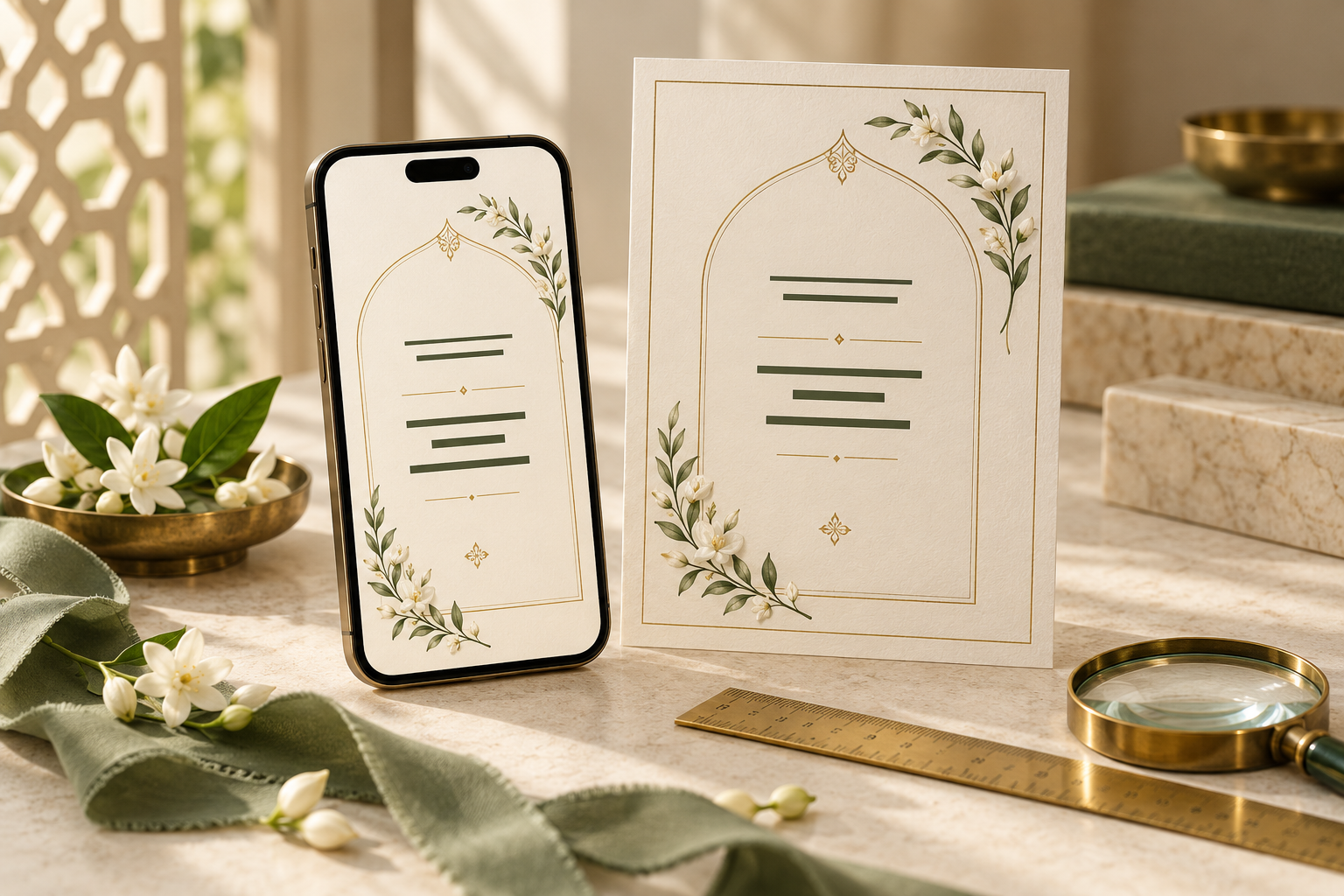
A digital Save the Date needs to look good where guests actually read it: on a phone, at an ordinary viewing size. A large export can still contain lettering that is too small. An elegant portrait can still make the date hard to find if the border, names and decorative heading compete for attention.
For a Nikah or Walima announcement, choose the layout around the information first, then agree the export dimensions with your designer. The aim is simple: guests should be able to identify the couple, the celebration and the date without hunting through the artwork.
This guide focuses on a still digital Save the Date. If you are still choosing between a still and motion, begin with our static or animated Save the Date comparison.
What size should a digital Save the Date be?
There is no single pixel size that guarantees a readable announcement on every phone. Ask for an output suited to the place you intend to share it, and judge a received test file rather than only the design canvas.
For an initial design conversation, these are useful examples:
- Compact portrait, 4:5 — 1080 × 1350 pixels: a short still announcement with the names, date and city grouped together.
- Tall portrait, 9:16 — 1080 × 1920 pixels: a composition that deliberately uses more vertical space.
- Square, 1:1 — 1080 × 1080 pixels: a compact alternative where the intended presentation suits a square.
These are suggested starting canvases, not WhatsApp requirements or promised Noor export options. A taller image does not automatically mean larger lettering: extra height can disappear into an oversized illustration or empty border. Ask your designer which shape the selected design supports before requesting an adaptation.
Understand canvas size versus reading size
The dimensions of the file describe its pixel grid. The size at which a guest sees it depends on the receiving app, the available screen space and whether the attachment has been opened.
Here is a simplified example. If a 1080-pixel-wide image is displayed 360 pixels wide, its content appears at one-third of its original scale. Lettering that occupies 60 pixels in the artwork appears approximately 20 pixels high in that illustration. Actual character shapes and app presentation vary, so this is a scaling explanation, not a font-size recommendation.
This is why increasing export resolution alone will not repair a crowded design. It can preserve detail in the file, but it does not change the proportion of the canvas occupied by the date. To make the date easier to read, give it more room within the composition.
Review both the received preview and the opened attachment. The preview should help guests recognise the announcement; the opened image should comfortably communicate all its essential information.
Build a hierarchy around the date
A Save the Date is a short announcement, so its strongest visual elements should serve that purpose. Start with three groups:
- Identity: the couple's approved names.
- Announcement: the event label and its confirmed date, including the year.
- Supporting information: the confirmed city and an invitation-to-follow line.
Keep the event and date close together. A large date above an unrelated decorative label can leave guests wondering whether it belongs to the Nikah or Walima. If the announcement includes two events, treat each event and date as its own clearly separated pair rather than placing two unexplained dates side by side.
The words “Save the Date” can be decorative, but they should not take so much space that the actual date becomes the smallest practical detail.
Choose the essential wording before adding family introductions, quotations or a long closing message.
Keep decorative fonts away from the practical details
A script heading can suit an elegant announcement. The date and city benefit from lettering with clear shapes and enough weight to remain visible when reduced.
Instead of choosing a universal font size from the design software, ask to see the actual wording in the proposed layout. Long names, two languages and different typefaces occupy space differently.
Try these changes before making all the text smaller:
- Give the names a deliberate line break.
- Reduce the size of a purely decorative heading.
- Remove an unnecessary flourish between the event and date.
- Expand the clear text area by simplifying the border.
- Move nonessential wording to the later invitation.
Use contrast deliberately, especially with gold and photographs
Champagne lettering on ivory may look gentle at full size but become difficult to distinguish on a small screen. Keep the palette if you love it; consider a darker tone for the date and supporting information, with pale metallic effects reserved for decoration.
The W3C contrast guidance specifies at least 4.5:1 for ordinary text and images of text, with a lower threshold for qualifying large text. For a small shared announcement, asking the designer to aim for strong contrast on every essential line is a useful practical starting point. This does not make a file automatically accessible or certify compliance.
A photo background needs particular care because its brightness changes across the image. A calm, solid panel behind the details can be more dependable than adding a shadow to thin lettering.
Greenvelope's photo Save the Date guidance similarly recommends checking the crop and contrast at the displayed size, then testing on a phone. If you use a photograph, keep faces and essential words clear of one another.
Give the composition breathing room
Leave a clear inset around the essential text. There is no universal safe margin for every messaging preview, so do not assume that one fixed measurement prevents every crop.
Keep the year, event name and final wording away from the edge. Decorative flowers or architectural details can frame the announcement; they should not force practical information into narrow gaps.
Consider this hypothetical redesign:
Crowded version: a large arch occupies the upper half, the couple's names cross several lines, the date sits in tiny gold lettering near the bottom, and the invitation-to-follow line touches the border.
Clearer version: the arch becomes a lighter frame, the names sit in a calm central area, the event and date form one distinct block, and the closing line has clear space beneath it.
The second version can use the same colours and artwork.
Keep the information available outside the image
A beautifully designed image is still an image. Guests cannot necessarily select its words or adjust the lettering as they would ordinary text. W3C's images of text guidance explains why real text helps people adapt information to their reading needs.
Include the essential announcement in the accompanying message as well. Keep this factual: the names, event, date and confirmed location, followed by the note that the invitation will follow. If you include a website address, send a working link outside the artwork rather than relying on a URL pictured inside it.
This also gives someone who cannot comfortably read the image another way to receive the news. Ask individual guests whether a call or another format would help rather than assuming one design meets every need.
A short brief for your designer
Before personalisation, share the approved wording and explain where the still announcement will be sent. You can use this brief:
We would like a still Save the Date for our [Nikah or Walima], mainly viewed on phones. Please keep the names, event and complete date prominent, with readable supporting wording and clear space around the text. We like [design direction]. Please confirm the supported portrait dimensions and file format, then show our actual wording in the personalised preview.
Replace the bracketed instructions before sending. If you also need a square version, print file or another output, ask about it separately rather than assuming it is included.
Noor's Save the Date collection uses portrait compositions and includes a personalised preview before delivery. Choose a direction, then use that preview to judge your real names, wording and spacing. Once the layout is comfortable, follow our Save the Date proofreading checklist to verify the facts and final file before sharing.
Frequently asked questions
Does a higher-resolution file make small text readable?
Not by itself. It may preserve sharper detail, but text that occupies too little of the design still appears small when the whole image is reduced. Adjust the layout and test the received file.
Must a Save the Date fill the whole phone screen?
No. A compact announcement can work well if it is easy to open and read.
Can I use the same file for printing?
Ask before ordering. A screen-ready file is not automatically prepared for a particular print size, trim or bleed. Confirm a separate print-ready output with the designer and printer if you need one.
Explore Noor’s four wedding website samples.
Open each live sample, compare the experience and ask us which design fits your celebration.
Two more useful reads.
 01
01Your Muslim wedding website checklist
The names, timings, family details, venue information and photographs to gather before making your Muslim wedding website.
Read the guide → 02
02Thoughtful wording for Nikah and Walima invitations
Practical Muslim wedding invitation wording for family introductions, Nikah details, Walima invitations and a warm guest welcome.
Read the guide →