How to Choose Photos for a Nikah Video Invitation
A practical guide to choosing and preparing photographs for a Nikah video invitation, from comfortable photo choices to portrait crops and final previews.
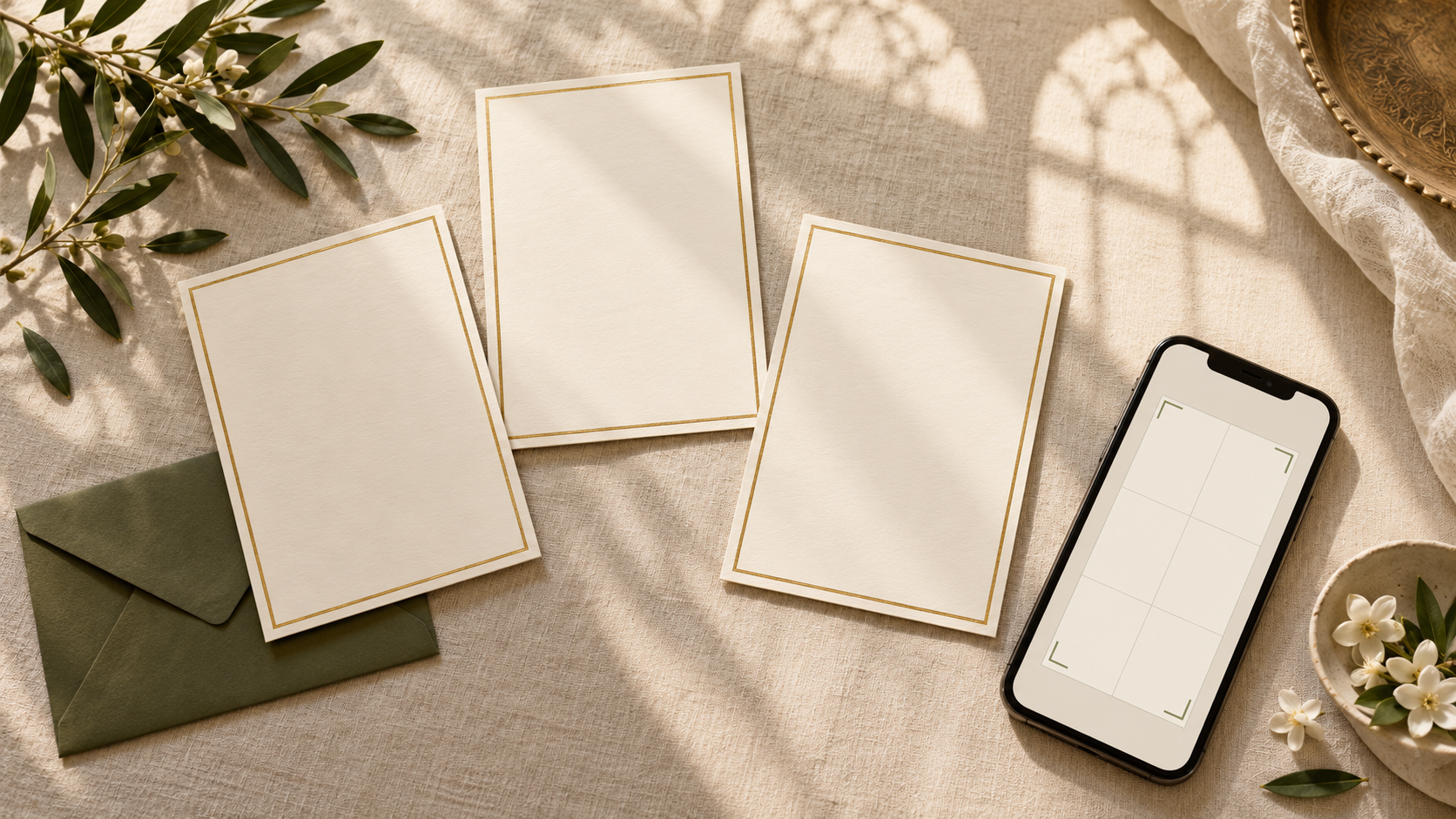
Choosing photos for a Nikah video invitation can feel surprisingly difficult. You may have a favourite picture that looks lovely in your gallery but becomes awkward when cropped vertically. Or you may have clear individual portraits and no recent photograph together.
Start with photographs that you both feel comfortable sharing, then check whether they suit the invitation design. A professional couple shoot is one possible source of images. Existing phone photographs can also be worth considering if they are clear and work with the layout.
This guide explains how to make a useful shortlist, prepare the original files and review the finished invitation on a phone.
First, check how the invitation will use your photos
Before selecting a large folder of images, ask your designer how many photographs the chosen design uses, where they appear and whether each frame is vertical, horizontal or square. A full-screen portrait and a small decorative photo window need different crops.
Noor’s video invitations are delivered as portrait 9:16 MP4 videos and support photographs. That describes the finished video, rather than requiring every photograph you send to have the same shape. Check how your particular images will fit the selected design before finalising them.
If you prefer an invitation without personal photos, explain that at the enquiry stage and ask what is possible in your chosen design. Agree on the approach before work begins.
Choose photos you are happy to share with the full guest list
An invitation may travel beyond the first person who receives it. Choose images that both of you are comfortable having seen by relatives, family friends and anyone else who might receive a forwarded copy.
Discuss preferences together before sending the files. You might prefer a formal portrait, a relaxed photograph or separate individual images. If relatives appear in a picture, check that they are comfortable being included too. A photograph can be meaningful to you without being the best choice for a widely shared invitation.
This is a personal and family decision. The right selection is the one you are comfortable sharing.
Look for clear faces and room around the edges
Open each candidate image at full size. Check whether faces are sharp, eyes are visible and the lighting feels natural. A photo that looks clear as a small thumbnail may reveal blur when enlarged.
- Leave breathing room. Space above the head and around the shoulders gives the designer more flexibility when cropping.
- Watch the edges. A tightly cropped face or a person standing at the extreme side may be difficult to place in a narrow frame.
- Keep backgrounds manageable. Busy signs, bright objects and other people can draw attention away from the couple.
- Check the light. Strong shadows or a bright window behind you can make faces harder to see.
For example, a wide group photograph with the couple near opposite edges may lose someone in a vertical crop. A closer photograph with both people near the centre gives the designer more options. Ask to see the proposed crop rather than assuming the entire original image will remain visible.
You can start with photographs you already have
If you have not had an engagement or couple shoot, review your existing photos before booking one solely for the invitation. Look through pictures from a family occasion, a visit or another day when you both liked how you looked.
When considering separate portraits, choose images with reasonably similar lighting and framing, then ask whether the template can accommodate them. A close-up from one person and a distant full-length photograph of the other may feel uneven when placed together.
If none of your existing images works, a simple new photograph in soft daylight against an uncluttered background can give you another option. Have someone take several versions with extra space around you. Review them together before sending a final selection.
Send original files with a clear shortlist
Use the original camera or phone files where possible. Screenshots, social-media downloads and repeatedly forwarded copies can contain less detail. Ask your designer for the preferred upload method and any file-size or format requirements.
A short, organised selection is easier to work with than dozens of unlabelled images. For each photo, identify:
- Whether it is your first choice or a backup
- Who appears in it, if that is not obvious
- Whether a crop is acceptable and anything that must remain visible
- Whether any retouching is requested, subject to what the service includes
Simple filenames such as “couple-first-choice” and “couple-backup” can help. Keep a copy of the originals, and avoid applying extra filters or cropping the files tightly before the designer has checked them.
Review the preview as your guests will see it
Watch the invitation on a phone at a normal viewing size. Noor provides a preview before final export, so use that stage to review the photographs alongside the wording and event details.
- Check every crop. Make sure faces and important clothing details remain comfortably inside the frame.
- Check the text. Names and event information should be easy to read wherever they appear near a photograph.
- Check the sequence. Confirm that the selected images appear in the intended order and feel consistent together.
- Check the details separately. Read names, dates, times and venue information carefully, even if the images look right.
- Consolidate feedback. Agree on one clear list of changes before returning it to the designer.
Ask for any changes while you are still reviewing the preview. Noor’s listed video-invitation package includes one revision round, so collecting both partners’ feedback together helps make that review useful.
Frequently asked questions
Do we need a professional photoshoot for a Nikah video invitation?
Ask what your chosen design needs first. A clear existing photograph may be suitable, while a professional shoot can offer more consistent lighting and framing. Have the designer assess your shortlist before deciding whether to arrange new photos.
Can we use separate bride and groom photographs?
Ask whether the chosen layout supports separate portraits. Send a pair with similar framing and lighting for review, and check the preview to see how they work together.
Should every photo be vertical?
Not necessarily. A portrait video can contain photo frames in different shapes. The important question is whether each original can be cropped appropriately for its place in the design.
What if we prefer not to include personal photos?
Tell the designer before choosing or commissioning the invitation and ask which photo-free approaches are available. Confirm the agreed design rather than assuming every template can be adapted.
Make the photo decision before production starts
A clear shortlist, original files and shared approval from both of you make the design brief easier to follow. Once the photos are settled, the preview can focus on getting the complete invitation right.
Explore Noor’s Nikah and wedding video invitations and ask how your preferred photographs will fit the design you have in mind.
Explore Noor’s four wedding website samples.
Open each live sample, compare the experience and ask us which design fits your celebration.
Two more useful reads.
 01
01Your Muslim wedding website checklist
The names, timings, family details, venue information and photographs to gather before making your Muslim wedding website.
Read the guide → 02
02Thoughtful wording for Nikah and Walima invitations
Practical Muslim wedding invitation wording for family introductions, Nikah details, Walima invitations and a warm guest welcome.
Read the guide →